
Workspace Settings
Configure your workspace preferences, branding, and integrations.
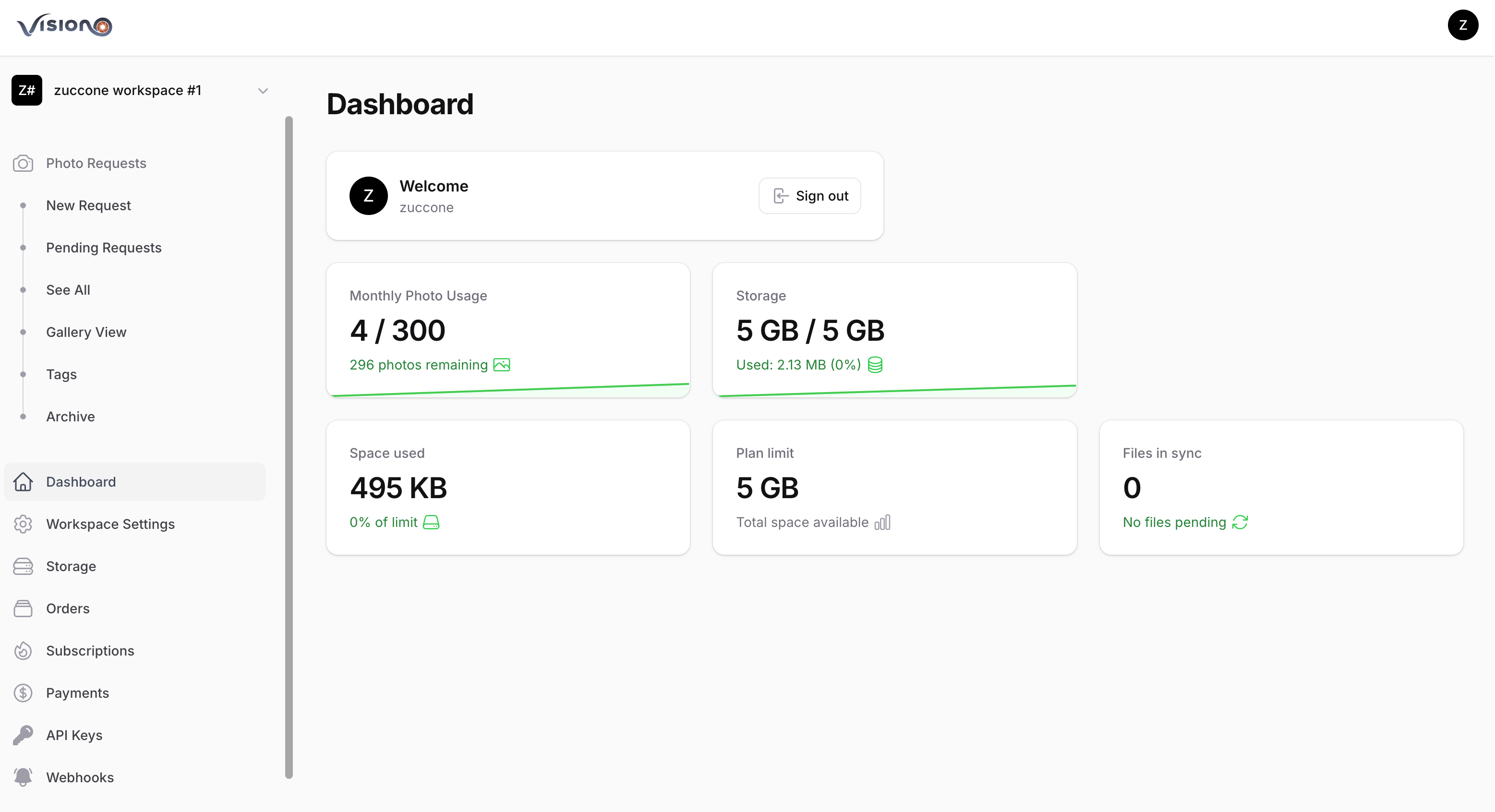
Accessing Settings
- Log into your dashboard
- Click Settings in the sidebar (or gear icon)
- Navigate between tabs to configure different areas
Settings Overview
The settings page is organized into tabs:
| Tab | Purpose | Plan Requirement |
|---|---|---|
| General | Name, timezone, address, limits | All plans |
| Domain | Custom subdomain | Professional+ |
| Branding | Logo and colors | Professional+ |
| Preferences | Message templates | All plans |
| Email templates | All plans | |
| Storage | Custom S3 storage | Active subscription |
General Settings
Workspace Name
Your organization's display name:
- Appears in emails to customers
- Shown on public request pages
- Used in PDF reports
Timezone
Set your preferred timezone:
- Click the Timezone dropdown
- Search or scroll to your timezone
- Select your timezone
- Save changes
All dates and times throughout the platform will display in this timezone.
Organization Address
Used for invoices and billing:
| Field | Purpose |
|---|---|
| Address Line 1 | Street address, company name |
| Address Line 2 | Suite, unit, building |
| City | City name |
| State | State or province |
| Zip | Postal code |
| Country | Country selection |
| Phone | Contact number |
| Tax Number | VAT/Tax ID for invoices |
Usage Limits
Control how photo limits are handled:
Block photo uploads when limit is reached:
- Enabled: Uploads blocked when monthly limit reached
- Disabled: Additional photos charged at overage rate
This setting affects your billing and customer experience.
Important
Overage usage is billed monthly, even for annual subscriptions.
Domain Settings
Professional Plan Required
Custom subdomains require a Professional or Enterprise plan.
Custom Subdomain
Create a branded subdomain for your photo requests:
https://yourcompany.visio.now/link-slugCreating Your Subdomain
- Navigate to Settings → Domain tab
- Enter your desired subdomain (3-20 characters)
- Only lowercase letters and numbers allowed
- Click Create Subdomain
Subdomain Rules
- Minimum 3 characters
- Maximum 20 characters
- Lowercase letters and numbers only
- No special characters or hyphens
- Must be unique (not already taken)
After Creation
- Subdomain is immediately active
- All Permanent Links use your subdomain
- Cannot be changed after creation (contact support)
Branding Settings
Professional Plan Required
Custom branding requires a Professional or Enterprise plan.
Company Logo
Upload your logo for public pages:
- Click the upload area
- Select an image file
- Recommended size: 400x200 pixels
- Supported formats: PNG, JPG
- Save changes
Your logo appears on:
- Photo upload pages
- PDF reports
- Public request pages
Brand Colors
Customize your visual identity:
| Color | Usage |
|---|---|
| Primary Color | Buttons, links |
| Secondary Color | Accents, highlights |
Pick colors using the color picker or enter hex codes directly.
Preferences
Message Template
Create a template for sharing photo request links:
Please send the requested photos using the following link from your phone: {link}Available Placeholders
| Placeholder | Description |
|---|---|
{link} | Direct URL to photo request |
{link_code} | URL to code entry page |
{code} | Numeric access code |
Numeric Code
The {code} placeholder requires a plan that supports numeric codes.
Using the Template
- Open any photo request detail page
- Click Copy Message
- Paste in SMS, chat, or email
Email Settings
Email Template
Customize emails sent to customers:
Subject Line
The email subject shown to recipients:
Photo Request from {tenant_name}Email Body
The email content with your instructions:
Hello,

You have received a photo request from {tenant_name}.

Please use the link below to upload your photos:
{link}

{instructions}

Access code: {code}

This request expires: {expiration}

Thank you!
Available Variables
| Variable | Description |
|---|---|
{link} | Direct link to upload page |
{code} | Access code |
{code_url} | URL to code entry page |
{tenant_name} | Your organization name |
{expiration} | Request expiration date |
{instructions} | Request instructions |
{unique_code} | Alphanumeric code |
{numeric_code} | 6-digit numeric code |
Storage Settings
Subscription Required
Custom S3 storage requires an active subscription.
See Storage for complete documentation.
Quick Overview
Configure your own S3-compatible storage:
- Enable Custom S3: Toggle to enable
- Select Provider: AWS S3, Cloudflare R2, MinIO, etc.
- Enter Credentials: Access key and secret key
- Configure Bucket: Name, region, endpoint
- Test Connection: Verify settings work
Supported Providers
- Amazon S3
- Cloudflare R2
- DigitalOcean Spaces
- MinIO
- Other S3-compatible services
Saving Changes
After making changes:
- Scroll to the bottom of the settings page
- Click Save
- A confirmation notification appears
Changes take effect immediately.
Best Practices
Initial Setup
- Set your workspace name first
- Configure timezone for accurate dates
- Add your address for invoices
- Set up email template for professional communication
Upgrading Plans
When you upgrade:
- Domain tab becomes available (Professional+)
- Branding tab becomes available (Professional+)
- Configure these settings to match your brand
Regular Review
- Update address when moving offices
- Refresh logo when rebranding
- Test S3 connection periodically
- Review email templates for accuracy
Troubleshooting
Settings Not Saving
- Check all required fields are filled
- Verify input format (colors, timezone)
- Ensure stable internet connection
- Try refreshing the page
Subdomain Issues
- Already taken: Choose a different name
- Invalid format: Use only lowercase letters/numbers
- After creation: Contact support to change
S3 Connection Failed
- Verify credentials are correct
- Check bucket name spelling
- Confirm region selection
- Test endpoint URL format
Related Pages
- Storage - Detailed storage setup
- Users - Team member management
- Customization - Additional branding options
- Template Messages - Message templates